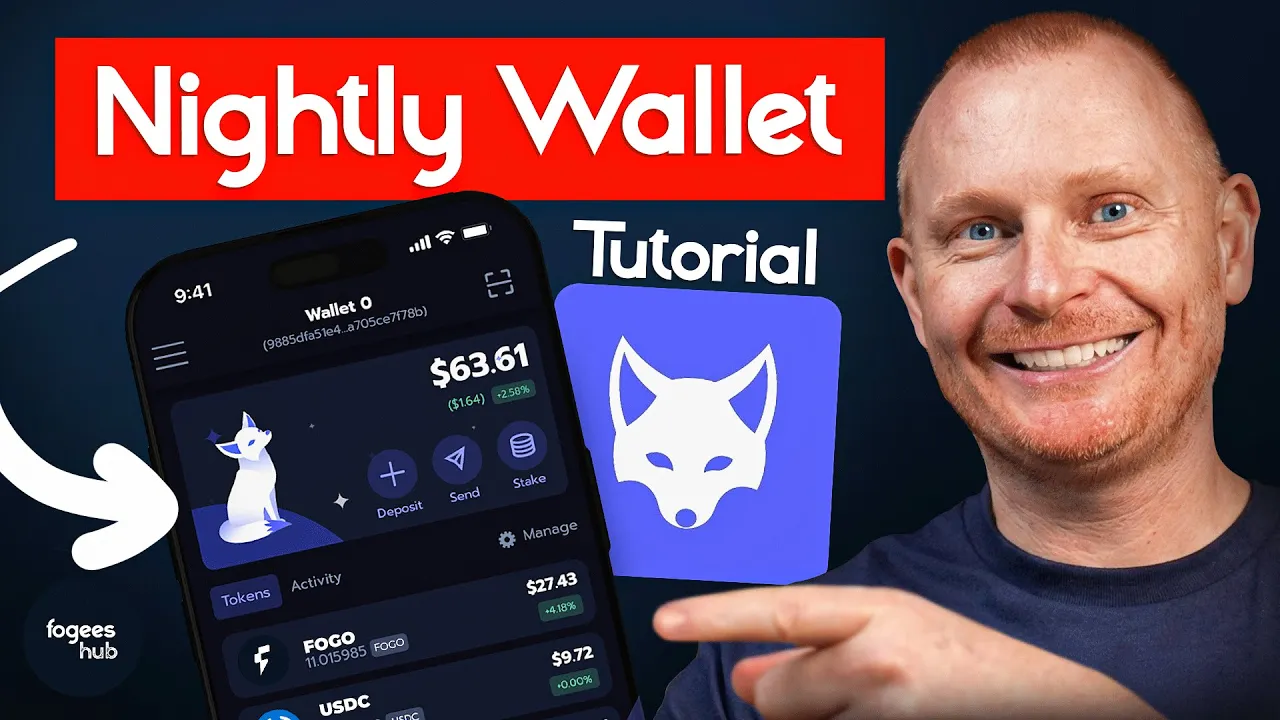
Nightly Wallet Setup for Fogo (Beginner Guide)
Jan 15, 2026
Start here: Join Fogo’s Season 2 Airdrop. Then keep reading.
If you’re starting on Fogo, Nightly is the one wallet that actually shows your assets properly.
Here’s how to set it up without getting scammed.
Why Nightly?
We recommend Nightly because it supports Fogo natively. This means you can see all of your assets directly in your wallet, a feature that isn't available with Phantom and most other wallets.
Installing Nightly
Here’s how to get started:
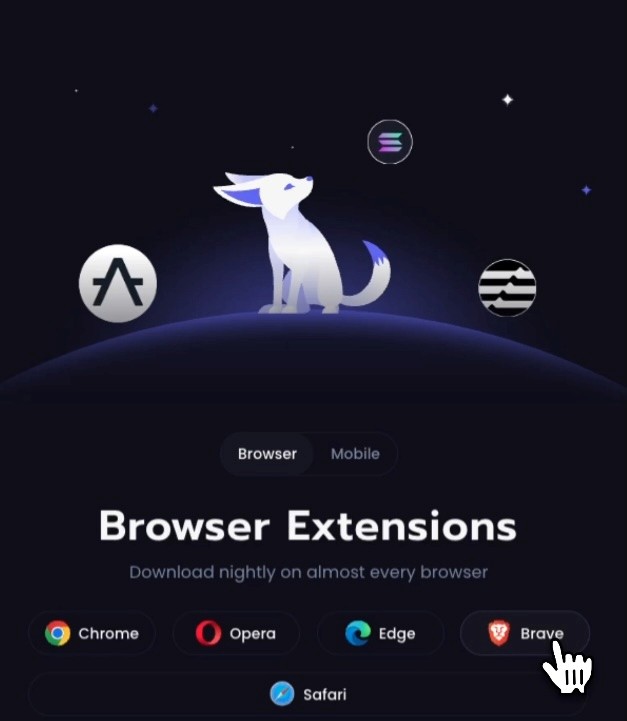
Go to www.nightly.app and click Download.
Select your browser (Brave, Chrome, Edge, or Opera), which will take you to the Chrome Web Store.
Before installing, ensure the extension has 100,000+ users and 880+ ratings to confirm you're downloading the legitimate version.
Click Add to Brave (or your browser) and then Add Extension.
Setting Up Your Wallet
Once installed, you'll two options:
Create a new wallet
Restore existing wallet - this is if you have previously set up a wallet on Fogo and wish to restore it using your 12 or 24-word seed phrase
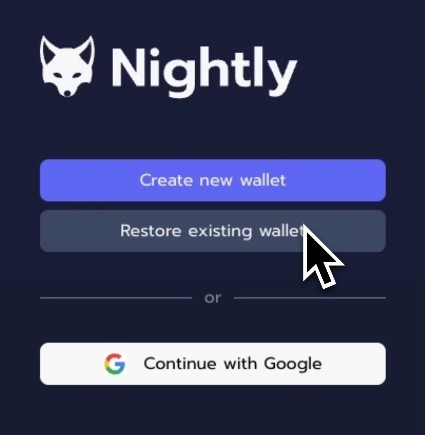
In this tutorial, we will create a new wallet.
Enter a strong password. Consider using a password manager like 1Password to store it securely.
Next, you'll see your secret recovery phrase.
Your Seed Phrase is your access to the wallet
Save your Seed Phrase somewhere safe and NEVER share it with anyone. Anyone who has this seed phrase can access your crypto.
Do not take a photo and save it to Google Drive or iCloud, and do not email it to yourself. Write it down and store it somewhere secure, like a safe, or add it to a trusted password manager.
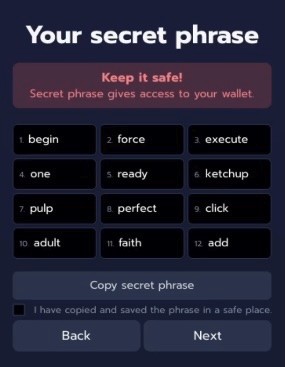
This is an example so you can see what it looks like, but of course, now I have revealed this seed phrase, I will not store any crypto in this wallet.
Once you've recorded your phrase and confirmed it's correct, click Next.
Configuring for Fogo
After setup, pin it to your browser by clicking the jigsaw/puzzle piece icon in your browser toolbar and pin the Nightly extension.
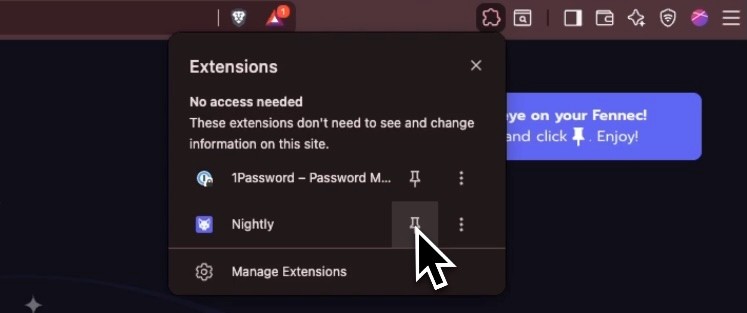
Open the wallet, scroll down to find Fogo in the network list, select your language, then click Save and Continue. Your wallet is now ready to use.
Navigating Your Wallet
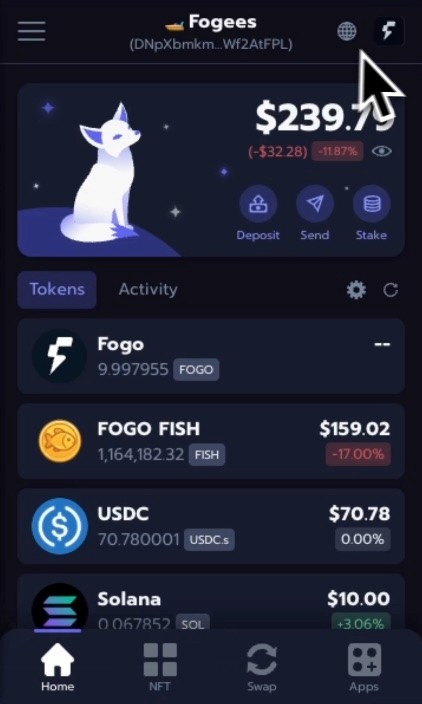
In the middle of the wallet interface, you'll see your wallet address. This is the address you need to provide to receive crypto.
At the top, you can switch between Mainnet and Testnet (you'll almost always use Mainnet).
You can also switch to different networks if you're active on other blockchains.
Below your balance, you'll see your tokens (Fogo, USDC, etc.) and an NFT panel for when NFTs launch on Fogo.
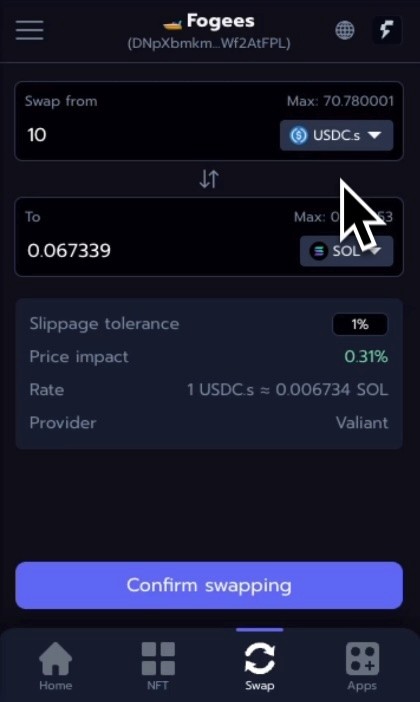
Swapping Tokens
Nightly has a built-in swap feature. Select the token you want to swap from, choose what you want to swap to, and confirm. Be aware that swaps through the app include an additional fee.
Staking
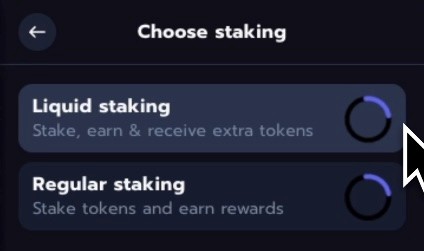
The wallet also supports staking, with two options: liquid staking and regular staking.
Regular Staking
We recommended staking with Fogees Hub, as you’ll be able to support more content like this, and video tutorials, while simultaneously earning rewards.
Liquid Staking
This is where you can use tokens in DeFi apps such as Pyron and Fogolend
Depositing Tokens
As discussed before, you can deposit your tokens using the wallet address. However you can also click on deposit and scan the QR code with a mobile device.
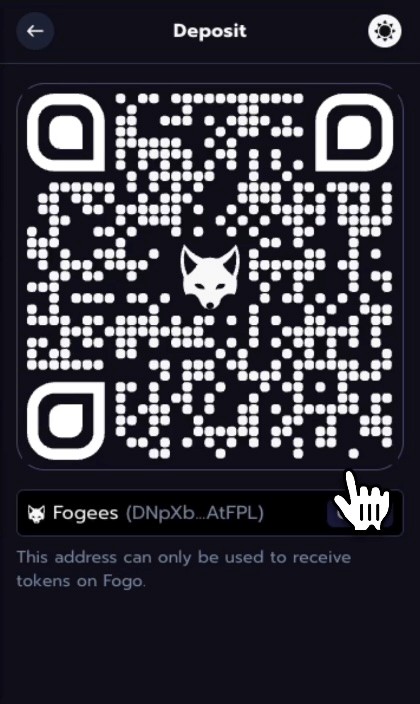
Do not freehand type addresses! Always copy and paste. Before sending from any exchange, double-check the first 5 and last 5 characters to ensure the address is correct.
Sending Tokens
Click on the token you want to send (e.g., Fogo)
Click Send
Paste the recipient's address
Enter the amount
Click Next to confirm
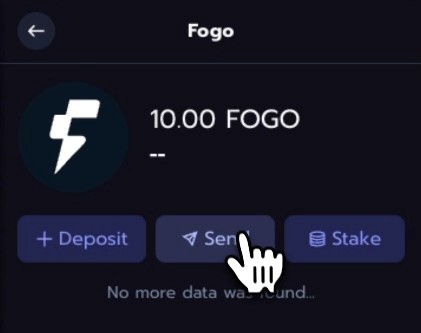
You can also use the address book feature to save frequently used addresses.
Managing Your Token List
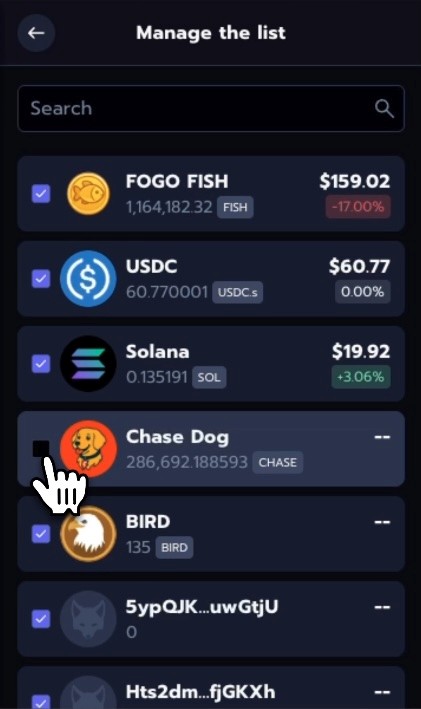
If you have tokens you don't want to see (like random airdrops), click Manage List and toggle them off. They're still in your wallet on the blockchain, but they won't show in the interface.
Viewing Price Charts
Click on any token to see its price action over the last 1 or 7 days, along with metrics like 24-hour price change.
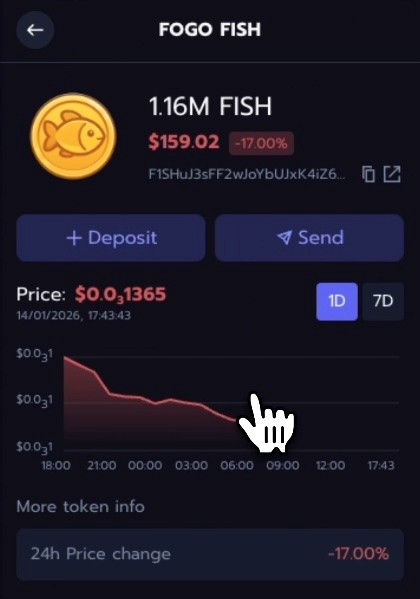
Note: The address shown on a token's page is the token contract address, not your wallet address. To receive any token on Fogo, always use the Deposit button. Your wallet address is the same for all Fogo-supported tokens.
Managing Multiple Wallets
You can have multiple wallets on your extension. To view them, click the hamburger menu to view and manage multiple wallets. Here you can:
Your single seed phrase can generate multiple wallet addresses.
You can add new accounts, import a private key, or connect a Ledger hardware wallet.
You can also rename wallets and drag them to reorder.
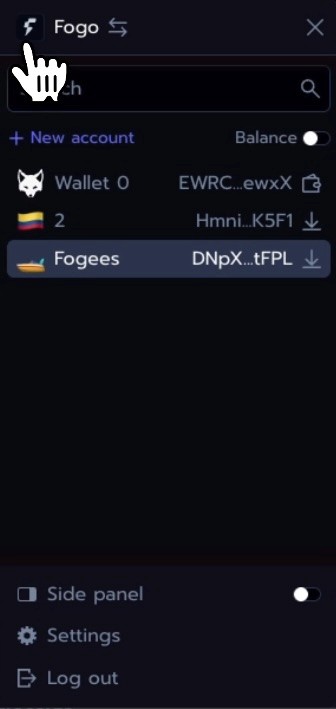
For a different layout, try the Side Panel option for easier viewing.
Security Reminders
The number one security tip:
Never give your secret recovery phrase to anyone and never enter it into any website.
No legitimate support person will ever ask for it. They never need it.
Crypto moves fast, but slow down and double-check everything before you send. Verify addresses, confirm amounts, and take your time.
Help us on our mission
If this information was useful, you can support us by staking with our validator. Earn yield while helping us produce more content like this for the community.
And… don’t miss Season 2 Airdrop. Sign up here and start earning flames.
Want a visual walkthrough? The video below covers this topic in detail.
Need Help with Fogo?
We’ve created a library of different tutorials on navigating the Fogo blockchain. Be sure to check out our blog posts for more.
In addition, we have a youtube playlist showing this tutorial and many others.
Disclaimer: This content is for educational purposes only and is not financial advice. Always do your own research before making any investment decisions.