Fogo Portfolio Explained (Track and Move Your Assets)
Jan 15, 2026
First things first: join Fogo’s Season 2 Airdrop. Get started here before diving in.
Instead of hopping between apps, Fogo Portfolio shows everything you own in one clean dashboard.
What is Fogo Portfolio?
Fogo Portfolio is a dedicated dashboard where you can see all the tokens held in your wallet at a glance. While you can view your holdings through various dApp websites like Valen or Pirate that support sessions, Portfolio gives you a clean, centralized view without needing to connect to multiple platforms.
To get started, head over to portfolio.fogo.io and connect your wallet.
What You'll See in Your Portfolio
Once connected, your dashboard displays all your token holdings laid out clearly. At this stage, as we’re early to Fogo, there is no price feed, but there will likely be one in the future.
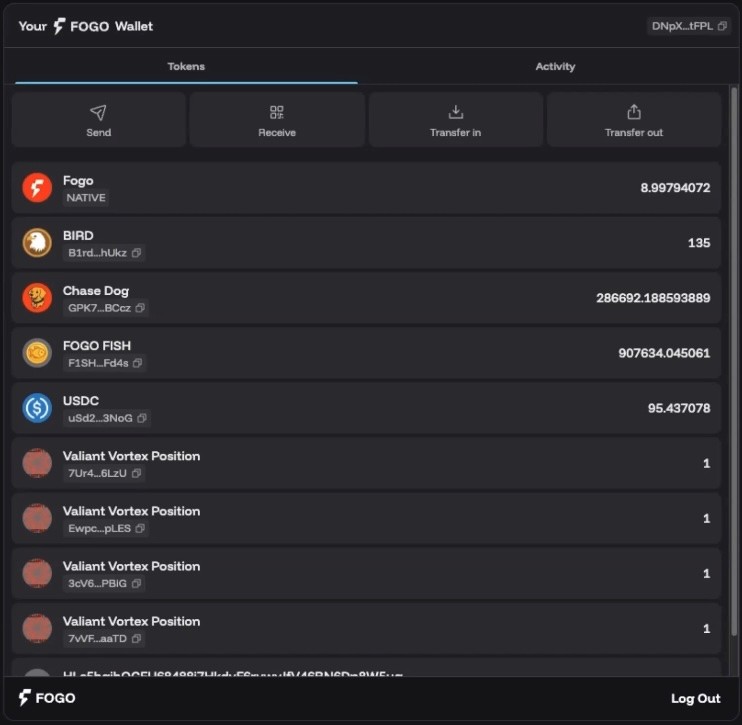
However, you will see your tokens, including liquidity positions, which we will cover in a later post. This makes it easy to get a snapshot of your entire portfolio without navigating through multiple dApps.
Transferring Assets In and Out
Portfolio isn't just for viewing; you can also move assets directly from the interface.
To transfer in: If you have USDC on Solana, you can bridge it over to Fogo right from the Portfolio dashboard. You can also transfer from other blockchains.
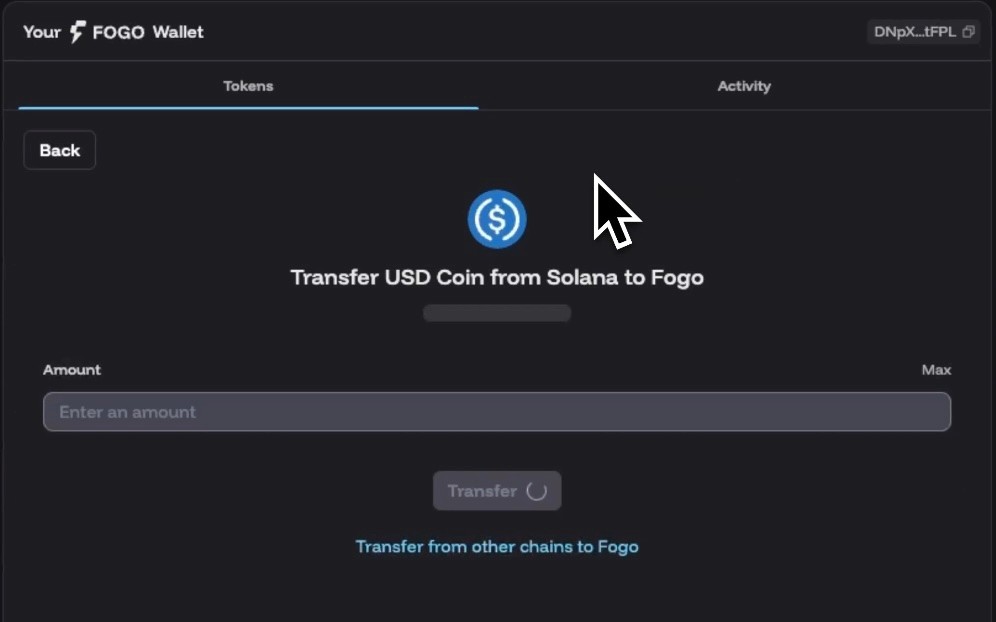
To transfer out: You can transfer tokens like USDC out of Fogo. Note that there's a small fee for outbound transfers.
Receiving Funds
When you want to receive tokens, simply click the Receive button. You'll see two options:
Copy your wallet address - Copy and paste this to the sender
Scan QR code - This is a great option for mobile users
Do not freehand type! If there is even the slightest error, the funds will be sent to the wrong address and can not be recovered. Use one of these two options, and check the first 5 and last 5 characters. Remember, these are case sensitive.
Sending Tokens
Sending tokens from your Portfolio is straightforward:
Click Send
Select the token you want to send
Enter the recipient's Fogo address
Choose the amount (use "Max" to send your full balance, or specify a custom amount)
Click Send to confirm
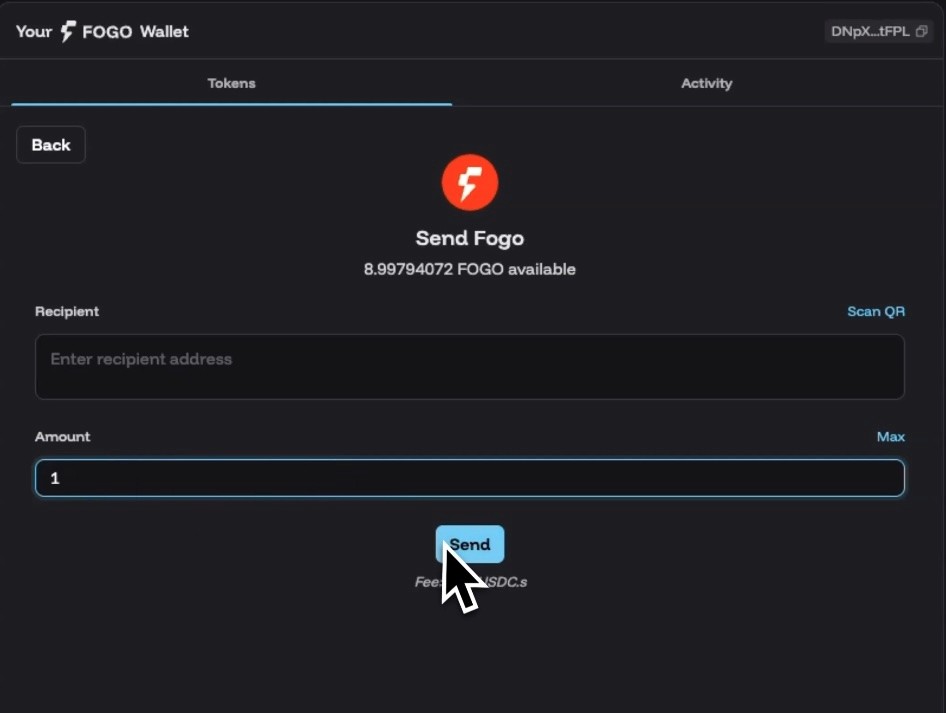
Again, use the same process to ensure the wallet address is correct.
Help us on our mission
If this information was useful, you can support us by staking with our validator. Earn yield while helping us produce more content like this for the community.
And… don’t miss Season 2 Airdrop. Sign up here and start earning flames.
Want a visual walkthrough? The video below covers this topic in detail.
Need help with Fogo?
We’ve created a library of different tutorials on navigating the Fogo blockchain. Be sure to check out our blog posts for more.
In addition, we have a youtube playlist showing this tutorial and many others.
Disclaimer: This content is for educational purposes only and is not financial advice. Always do your own research before making any investment decisions.